
Unlock Your Galaxy's Hidden Power: Record Videos Directly to Storage—Most Users Don't Know This Trick!

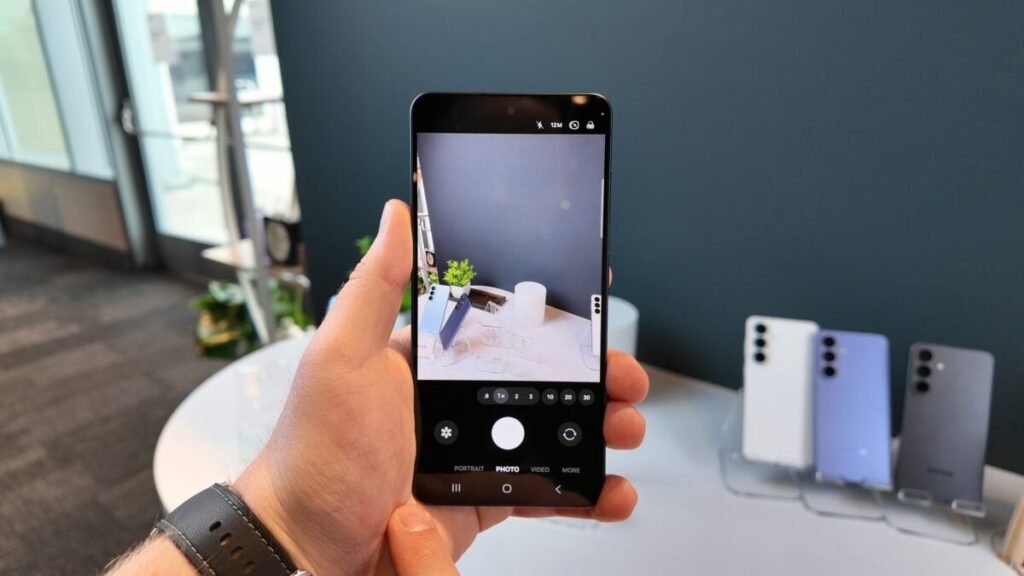
In an era where high-definition video recording has become the norm, smartphone users are grappling with a common obstacle: limited internal storage. Devices like the Samsung Galaxy S26 Ultra are capable of shooting in stunning 4K and even 8K resolutions, but a mere few minutes of video can quickly consume several gigabytes of space. For those who often find themselves needing to capture extended footage—be it an event, interview, or travel memories—this can be a significant dilemma.
Fortunately, there’s a little-known feature for Galaxy phone users that alleviates this issue: the ability to record videos directly onto a USB-C drive. This innovative capability allows users to bypass internal storage entirely, saving footage straight to an external device even while recording. It's compatible with all video formats supported by the Camera app, including the new APV format, making it a versatile solution for videographers.
This is not a workaround using microSD cards; instead, it saves directly to whatever USB-C compatible storage device is connected, such as a flash drive or a portable SSD. The camera records the video without storing it temporarily on the phone’s internal memory, effectively sidestepping the storage bottleneck users often face.
📰 Table of Contents
Requirements for External Video Recording
However, not all Galaxy models support this feature. It's generally found on newer devices running the One UI 7.0 or later. To capitalize on this functionality, users should consider the type of external storage they use. While a flash drive can work, portable SSDs are recommended for optimal performance, as video recording demands sustained write speeds that slower drives may struggle to meet. Moreover, the cable or adapter in use is crucial; a flimsy connection can jeopardize recording quality and reliability.
Recording directly to external storage offers several advantages. Firstly, it eliminates the constant anxiety about running out of space. Users can record lengthy videos without having to pause and delete older files. Secondly, it streamlines the post-production process. Once the shoot is done, users can simply unplug the drive and transfer the footage to their computers without any additional steps.
How to Enable the Feature
Enabling the recording feature is straightforward, though the steps may vary slightly depending on the One UI version. Typically, users will need to:
- Open the Camera app and navigate to its settings.
- Scroll down to the Camera Assistant option, which may require downloading from the Galaxy Store if not pre-installed.
- Activate the Save videos to external storage option.
Once enabled, a USB-C indicator will appear in the top-right corner of the viewfinder during recording, along with a readout of remaining recording time. To access the footage after shooting, users can navigate to My Files > USB storage and locate the DCIM folder.
It's also essential to ensure that the external drive is formatted correctly. Ideally, it should be in the exFAT format, as the FAT32 system has a file size limit of 4GB, which can complicate the save process for longer videos. If a drive is formatted on a Windows PC, it will default to exFAT, making it more suitable for video storage. Users should remember to back up any data before formatting, as this process will erase everything on the drive.
Speed is another critical factor when selecting external storage. Testing has shown that standard flash drives can introduce delays after each recording, resulting in a waiting period during which the Camera app locks users out from accessing other features. A faster portable SSD can significantly reduce this wait time, enhancing the overall recording experience. However, a word of caution: if the drive disconnects mid-recording, the footage will be lost, emphasizing the need for a secure connection.
As more content creators and everyday users embrace high-resolution recording on their smartphones, features like direct video recording to external storage can make a world of difference. With the right setup, users can focus on capturing their moments without the constant worry of storage limitations. This not only enhances creativity but also ensures that every precious memory can be captured and stored with ease.
You Won't Believe Why My Client Stormed Out in Just 3 Minutes—The Shocking Truth Revealed!

Why Did USL’s Deputy CEO Justin Papadakis Make a Shocking Exit? The Real Story Revealed!

Microsoft's Shocking AI Move: Why Experts Say You Must Invest NOW or Risk Missing Out!

You Won’t Believe What This Seattle Duo Reveals in April’s Best Paperbacks – Get It Before It’s Gone!

You Won't Believe What This Golden Toilet Says About Trump's White House Renovations!

Kansas Votes Under Siege: 3 Shocking Court Battles That Could Change Everything!
You might also like: