
Unlock These 7 Mind-Blowing Apple Watch Hacks Tonight—#4 Will Change Your Fitness Game Forever!

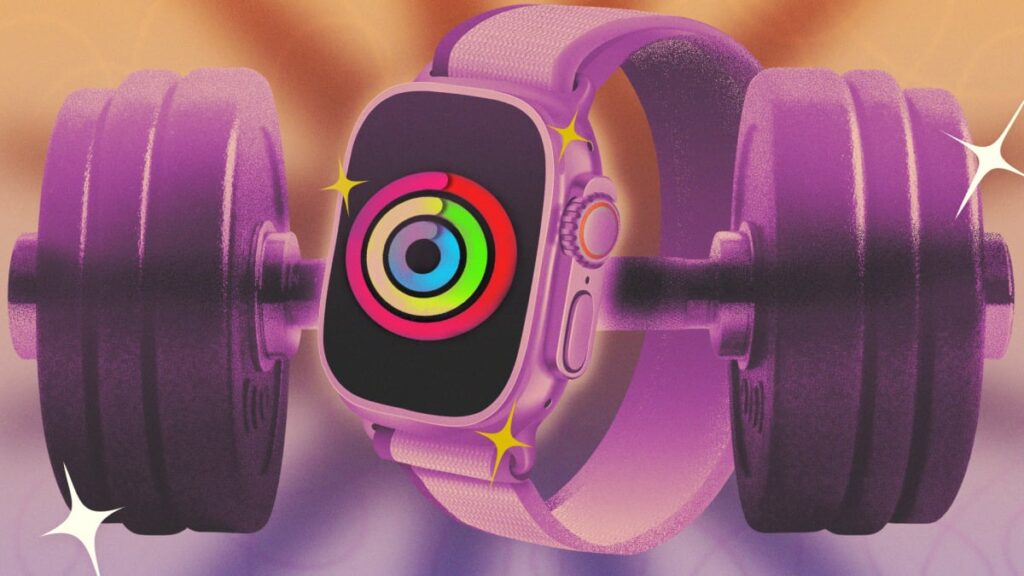
The Apple Watch has evolved into a powerful companion for fitness enthusiasts, offering a robust platform for tracking workouts and health data. While many users are familiar with the basic functionalities, there are several lesser-known features and settings that can significantly enhance the workout experience. Here’s a guide to getting the most out of your Apple Watch fitness journey.
📰 Table of Contents
Customize Your Activity Goals
The Apple Watch features three primary activity rings: Move, Exercise, and Stand. These rings serve as visual motivators to encourage daily movement. However, you don’t have to adhere to the same goals every day. Apple has updated the Fitness app to allow users to adjust their Move and Exercise targets based on personal preferences or specific circumstances. You can even schedule lower targets for designated rest days.
To customize your goals, navigate to the Fitness app, select the Activity Rings card, and tap the “+/-” icon adjacent to each goal. This flexibility is beneficial for those with varying levels of activity throughout the week, such as reducing your Stand hour goal on days when you may be traveling or unable to move around much.
Wear It Your Way
While the Apple Watch is designed to be worn on the wrist, you have the option to wear it on your upper arm or ankle, especially during certain workouts. If your routine includes exercises like kettlebell snatches or bench presses, placing the watch on your upper arm can provide more accurate readings without interference from wrist wraps. For those using standing desks, wearing the watch on your ankle may help in accurately tracking steps. Just be sure to invest in a larger wristband if needed.
Workout sessions can get intense, and navigating through apps should be seamless. By default, your installed apps appear as small icons, which can be challenging to tap accurately mid-exercise. To improve this, press the crown to view your apps and scroll to the bottom of the screen to switch to List View. This format arranges apps alphabetically, making it easier to find what you need quickly during a workout.
Data at Your Fingertips with Bevel
The Apple Watch collects a wealth of health data, but viewing it all in one place can be cumbersome. Enter Bevel, a third-party app that aggregates your fitness data and provides recovery scores similar to metrics offered by popular fitness trackers like the Whoop and Oura rings. Bevel features a free tier with ample functionality, allowing users to manage their fitness data more effectively without incurring additional costs.
Customize Your Workouts
The Workout app has transformed from its initial role as a basic tracker into a comprehensive fitness tool. Users can create custom workouts, including interval training and specific duration sessions. Access this feature via the Workout tab and tap the timer icon to program tailored workouts. This is often more manageable when done through the companion iPhone app, where Apple provides clear instructions.
Compete with Yourself
If you frequently run or bike the same routes, the Apple Watch’s Race Route feature can add an element of competition to your training. The watch automatically tracks your previous performances on the same route, allowing you to race against your best time or simply your last effort. This feature can be a motivational tool during workouts, helping users push their limits.
Workouts Without the Watch
One of the recent upgrades in iOS 26 allows users to track workouts without needing the Apple Watch. If you find yourself without your watch but still want to log a run, simply open the Fitness app on your iPhone, choose your workout type, and it will utilize your phone’s GPS to track distance and pace. For indoor workouts, while the data might be limited, you can still log your effort and estimated calorie burn. Pairing a heart rate measuring device directly to your iPhone can enhance accuracy.
Connect with Gym Equipment
For treadmill users, the Apple Watch can synchronize with compatible gym machines using a feature called GymKit. This ensures that your workout data is accurate, as your watch will pull data directly from the treadmill. In your watch settings, toggle on Detect Gym Equipment to make this connection seamless. After tapping your watch on the machine, your metrics will automatically sync, providing a clearer picture of your workout performance.
Advanced Running Data with WorkOutDoors
Runners looking for more sophisticated analytics may want to consider downloading the WorkOutDoors app. This app offers rich mapping capabilities and detailed data analytics comparable to high-end fitness trackers. While it may take some time to navigate through the features, the investment of $8.99 for a one-time purchase can be well worth it for avid runners and hikers.
Battery Management for Sleep Tracking
If you rely on your Apple Watch for sleep tracking, low battery levels shouldn't deter you. The latest models are designed to charge quickly, with the Apple Watch Series 11 requiring only five minutes of charging for eight hours of sleep tracking. This is particularly useful for ensuring you can monitor your sleep patterns without sacrificing usability during the day.
By taking advantage of these features and settings, Apple Watch users can maximize their fitness experience, tailoring their workouts and health tracking to suit individual needs and goals. Whether it’s optimizing app navigation or utilizing third-party applications for data aggregation, the Apple Watch continues to be a leading tool in health and fitness.
Is This $200 Smartphone Really a 16GB RAM Powerhouse with a 12-Mile Radio? You Won’t Believe What It Can Do!

BellRing Brands Stock Just Tanked 25%—Here’s What Investors Are Fearing the Most!

Deion Sanders’ Shocking NFL Denial: What He Revealed About His Son Will Leave You Speechless!

You Won't Believe the Shocking Secrets Behind Nebraska Football's Greatest Legends!

Carroll Football's 2026 Recruiting Class: Discover the Shocking Names That Could Change Everything!
Your Browser May Be Exposing You to THIS Shocking Cyber Threat – Are You at Risk?
You might also like: